Connect a bank through Plaid or add an account manually, then choose which Finluency account each connected bank account imports into.
Add each bank, credit card, and loan account you want in your forecast. You can connect a bank through Plaid to import activity, or add an account manually. To learn how Finluency groups accounts, see Accounts.
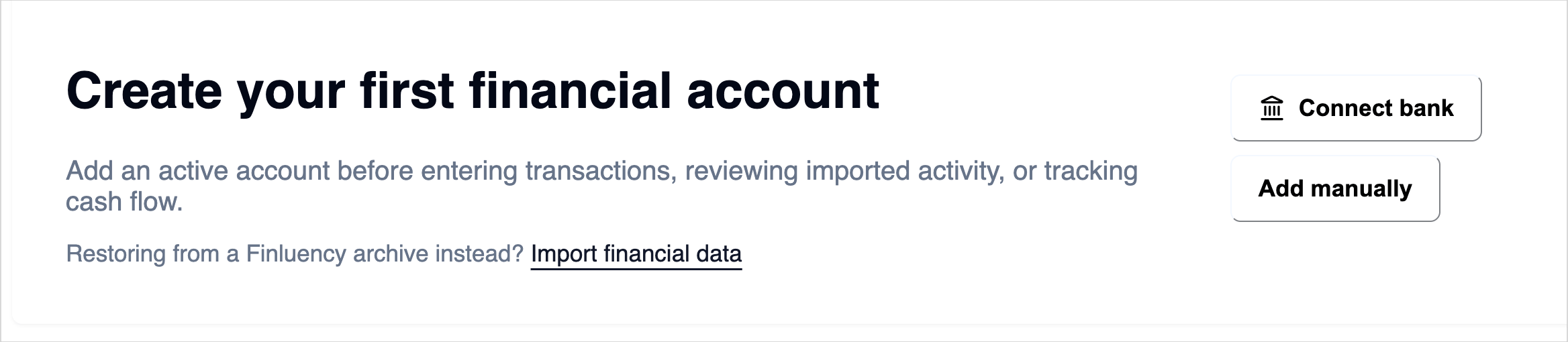
On Home, click Connect bank. If you already have accounts, open Financial Accounts in the side menu, click Financial Accounts Dashboard, and click Connect bank there.
Connect bank and Add manually on Home
2
Sign in to your bank
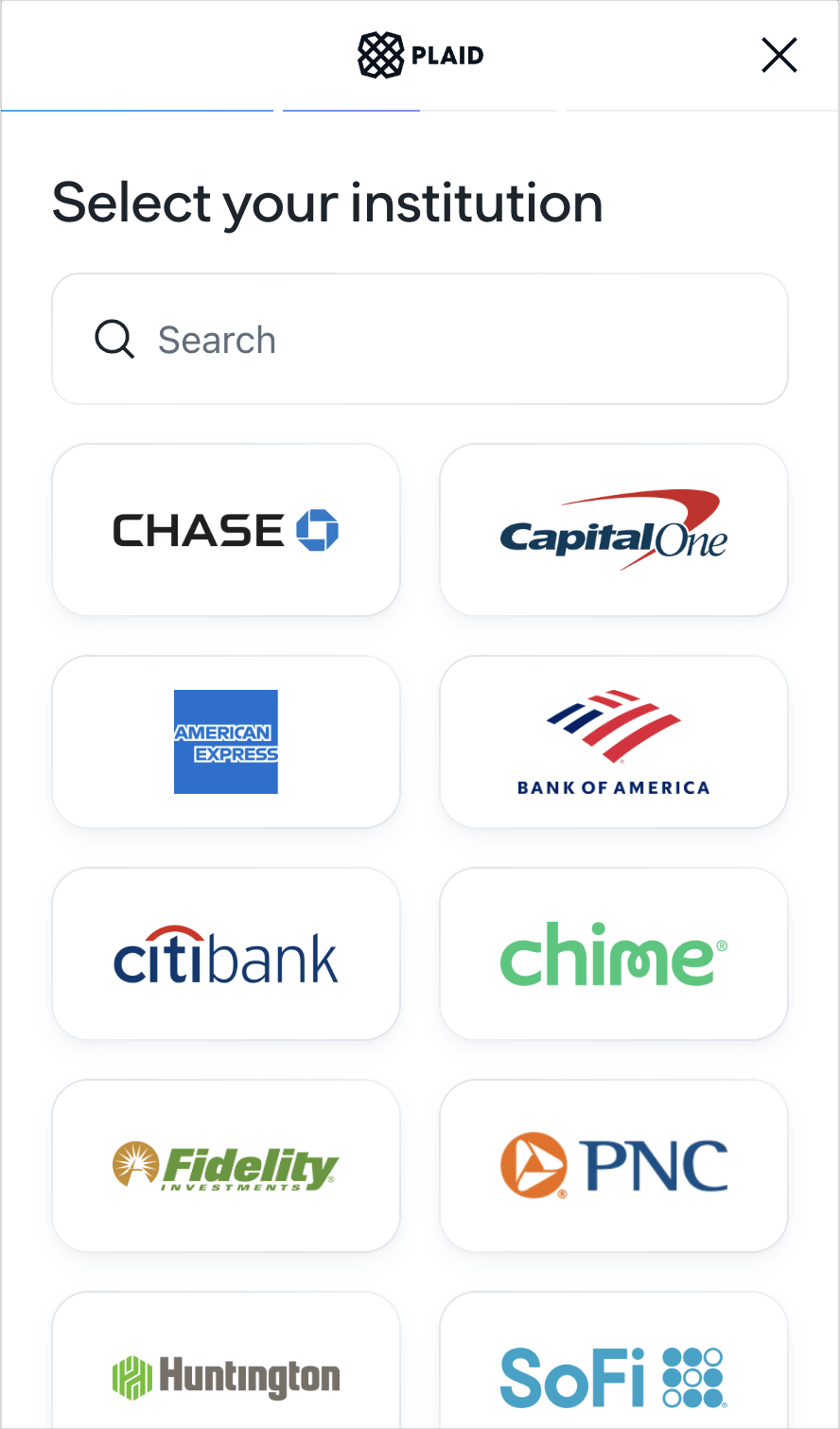
In the Plaid window, find your bank and follow its prompts. When you finish, Finluency shows Bank connected.
Choosing your bank in Plaid
3
Choose where each account imports
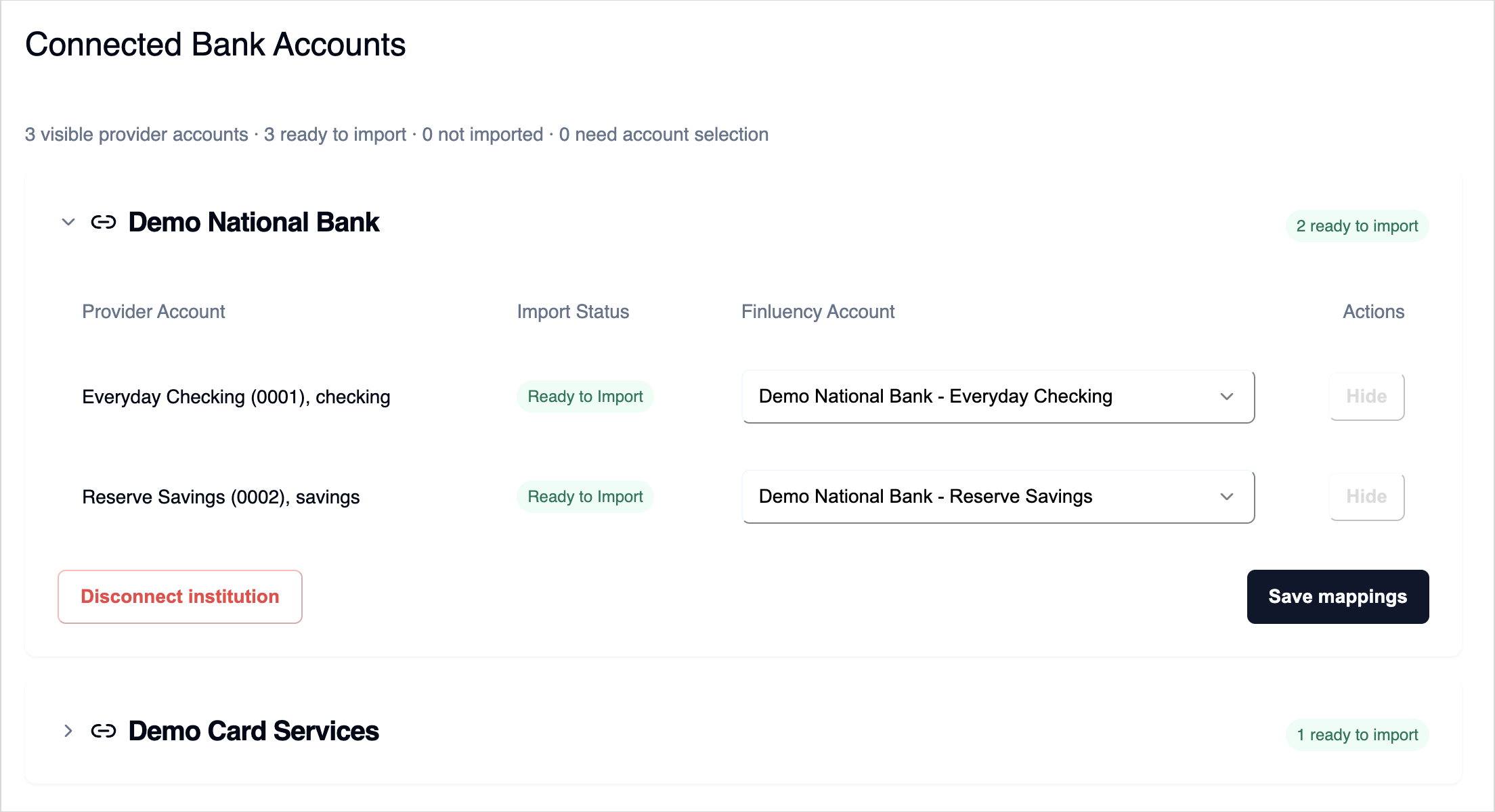
Under Connected Bank Accounts, each account from your bank has a row. In Finluency Account, choose one of your active Finluency accounts, or choose Do not import.
Connected Bank Accounts
4
Create a Finluency account if you need one
If no Finluency account fits, click Create account in that row. The form fills in the bank name, account name, and type. Check Account Type, Starting Balance (in USD), and Starting balance as of before you click Save. They default to Personal, 0.00, and today.
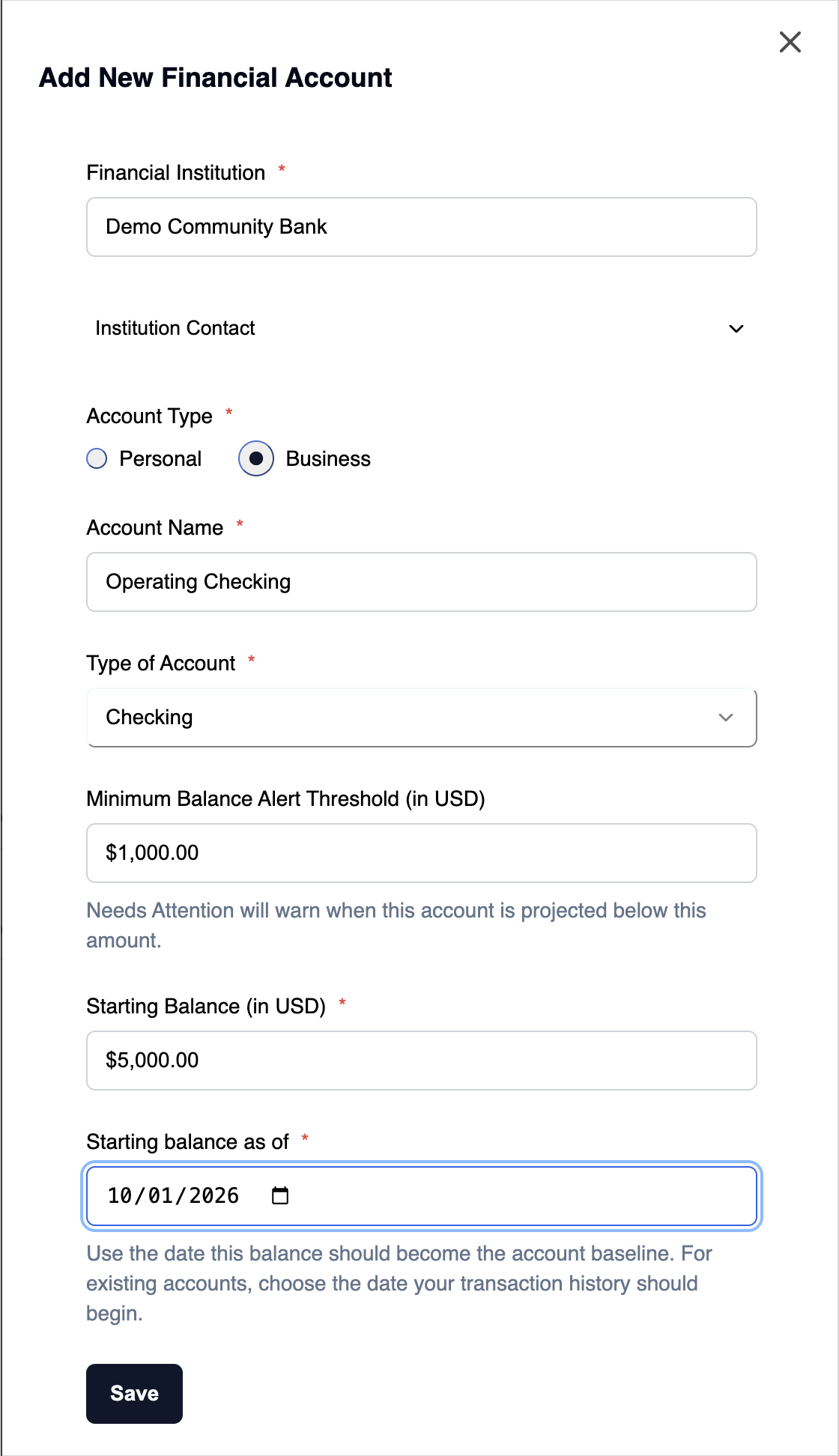
On Home, click Add manually. From the Financial Accounts Dashboard, click + Add account. The Add New Financial Account form opens.
2
Enter the institution
Enter the Financial Institution. To save its phone number, website, or a contact person, expand Institution Contact.
3
Describe the account
Choose Personal or Business for Account Type. Enter an Account Name. Then pick a Type of Account from the Cash Account or Credit Account list.
4
Enter limits and alerts
For a credit account, enter the Total Available Credit Line (in USD).
For a cash account, you can enter a Minimum Balance Alert Threshold (in USD). Finluency warns you when the account is below it, or is projected to drop below it.
5
Set the starting balance
Enter the Starting Balance (in USD). You can enter 0.00. In Starting balance as of, choose the date this balance applies. For an account you’ve had for a while, choose the date your transaction history should begin.
6
Save
Click Save.
A completed manual account
Once an account has transactions, you can’t change its starting balance, its as-of date, or whether it’s a cash or credit account.
Open the Financial Accounts Dashboard. Each active account shows its Current Balance. Credit accounts also show Credit Line and Available Credit.For a Plaid connection, each row under Connected Bank Accounts shows its Import Status:
Status
What it means
Ready to Import
The account imports into the Finluency account you chose.
Needs Account Selection
Choose a Finluency account or Do not import.
Not Imported
You chose Do not import.
Hidden
You hid the account. Click Show hidden accounts and Restore to bring it back.
Imported activity appears under Imported Transactions in the side menu, where you review it.
Why can't I choose an account in the Finluency Account list?
Each Finluency account can take imports from only one bank account at a time. Accounts already chosen in another row are unavailable. Only active accounts appear.
Why is Save mappings grayed out?
You don’t have an active Finluency account yet. Click Create account in a row, or add an account manually.
The connection said Connection failed or Plaid unavailable
Finluency couldn’t start or finish the Plaid connection. Try Connect bank again. If it keeps failing, see Troubleshooting.
How do I stop importing from a bank?
Under Connected Bank Accounts, click Disconnect institution for that bank and confirm. This stops future imports for every account at that bank. Transactions already in Finluency stay.
How do I remove an account I no longer use?
On the Financial Accounts Dashboard, click Deactivate account on the account’s card and confirm. It stays in your history but drops out of new transactions and planning. To reactivate it, click the pencil icon in Inactive Financial Accounts and set Account Status to Active.